If you want to install all the goodies that don't come with Ubuntu, such as multimedia codecs, etc, do this at the command line:
> sudo apt-get install ubuntu-restricted-extras
For encrypted DVDs, do this:
sudo apt-get install mplayer
sudo wget http://www.medibuntu.org/sources.list.d/$(lsb_release -cs).list --output-document=/etc/apt/sources.list.d/medibuntu.list
sudo apt-get -q update
sudo apt-get --yes -q --allow-unauthenticated install medibuntu-keyring
sudo apt-get -q update
sudo apt-get --yes install app-install-data-medibuntu apport-hooks-medibuntu
sudo apt-get install w64codecs libdvdcss2
Applicable to 11.04 (Natty Narwhal)
Sunday, May 15, 2011

Saturday, February 5, 2011
Solar Power
I found an interesting table in a 2002 NREL report on solar power technologies (so it is in 2002 dollars), showing the price per kWh for various technologies:
 So even in 2002, Parabolic Troughs and Power Towers were looking pretty promising! These technologies, when employing thermal storage, have now been developed (as of 2011) to a maturity level where they can achieve price-parity with conventional (fossil) fuels, at least in the Southwest United States.

Wednesday, December 29, 2010
Port Forwarding SSH with Actiontec M1000 DSL Modem
- First, make sure you have an SSH server installed and running, and listening on the normal SSH port (22).
- Make sure your server is on a static IP address, and that your DHCP settings on your router are such that the DHCP IP range excludes the static IP address you've entered for your server. (I've entered 192.168.0.4 for my server's local IP address)
- Now, make sure that the Actiontec's following two configuration screens look roughly like what you see below:


Tip: You probably won't be able to test out your SSH server's visibility on the Internet without physically going somewhere (like Starbucks), since it doesn't seem to allow doing a "u-turn" and connecting from your local network. If you have a server you can log into somewhere else, and then try logging in from there, that should work.
Thursday, November 18, 2010
Current Regulator Circuit
Yippee! I successfully remembered my training as an electrical engineering student, and built a current regulating circuit to guarantee constant illumination from an LED under varying supply voltages.
(application: RC car headlights)

I won't bore you with a circuit schematic ;-) but it involves two LEDs each having a Vf of 2.0 V and an If of 20ma, a 75 ohm resistor, and a 10k resistor (though it probably oughta be 1k). The resistor values need to be adjusted for the Vbe of the 2n3904 transistor (~0.75 V under these conditions), but the goal is to guarantee 20ma through the LED on the top, for a Vs of 4 to 6V.
(application: RC car headlights)

I won't bore you with a circuit schematic ;-) but it involves two LEDs each having a Vf of 2.0 V and an If of 20ma, a 75 ohm resistor, and a 10k resistor (though it probably oughta be 1k). The resistor values need to be adjusted for the Vbe of the 2n3904 transistor (~0.75 V under these conditions), but the goal is to guarantee 20ma through the LED on the top, for a Vs of 4 to 6V.
Saturday, November 13, 2010
Quick Drying Random Things
Ever need something dried quickly, but can't microwave it, stick it in the oven, or put it in the clothes dryer? Try this!

Just tape a hair dryer into the opening of a PAPER grocery bag, put the thing to dry inside, and partially tape it shut. Turn on the hair dryer, and wait a couple of minutes. Whala!!

Just tape a hair dryer into the opening of a PAPER grocery bag, put the thing to dry inside, and partially tape it shut. Turn on the hair dryer, and wait a couple of minutes. Whala!!
Friday, October 29, 2010
Zooming in GNU Octave under Ubuntu
Yay, I finally solved my problem! I can now zoom in Octave plots using the mouse (currently on Ubuntu 10.04 LTS).
...but here it is so you don't have to scroll through all of that:
Build gnuplot with:
./configure --enable-volatile-data
make
sudo make install
and if necessary change the gnuplot's path in octave with:
gnuplot_binary ("/usr/local/bin/gnuplot")

Just use the right mouse button to select the first point, then click a second time to select the other corner. Whala! Press "a" to go back to the original zoom level, and press "h" to dump some help out to the Octave terminal window.
Enjoy!
...but here it is so you don't have to scroll through all of that:
Build gnuplot with:
./configure --enable-volatile-data
make
sudo make install
and if necessary change the gnuplot's path in octave with:
gnuplot_binary ("/usr/local/bin/gnuplot")

Just use the right mouse button to select the first point, then click a second time to select the other corner. Whala! Press "a" to go back to the original zoom level, and press "h" to dump some help out to the Octave terminal window.
Enjoy!
Friday, August 27, 2010
Saturday, June 12, 2010
Mini Home Theater
Check out my sweet new mini home-entertainment system! I used to be into the whole "11-channel surround, 10,000W subwoofer" etc... thing, but in my old age, have decided most of that stuff is a gimmick. All you need are some decent speakers, well shielded cables, and a high-res (1080p) screen up close, so you can actually see the pixels. This system uses a PC (hidden under the end-table) hooked in through an HDMI input, running Ubuntu so I can surf the web. My keyboard is wireless, and has a built-in track-pad to minimize device juggling. The speakers are M-Audio powered monitors, which do a good job down to about 80 Hz... chosen to maximize audio quality while minimizing space consumption and neighbor-annoyance.


Friday, May 14, 2010
Friday, April 30, 2010
The Linux Prayer
Our Torvalds, who art in Finland
Hallowed be thy code
Thy kernel come
thou art half done
on AMD as it is in X86
And give us this release our bug fixes
And forgive us our half-assed bug reports
As we forgive those whose patches aren't fixes.
And insmod us not into kernel taint
But deliver us from Microsoft.
For mine is the license
And the source
Forever GPL'd
Ramen
from Reddit/Linux, composed by multiple authors
Hallowed be thy code
Thy kernel come
thou art half done
on AMD as it is in X86
And give us this release our bug fixes
And forgive us our half-assed bug reports
As we forgive those whose patches aren't fixes.
And insmod us not into kernel taint
But deliver us from Microsoft.
For mine is the license
And the source
Forever GPL'd
Ramen
from Reddit/Linux, composed by multiple authors
Tuesday, March 9, 2010
Science
And now, for a very short rant on what science isn't, and what it is....
Science is not a set of beliefs, it is a system for finding out about the world.
What you think of as science, the body of knowlege, are all the things other people found out about the world by using the scientific method.
The beauty of science is that you don't have to take anyone's word for it. If you doubt something that someone else came up with, you can apply the scientific method to find out for your self whether or not it is true.
Nature is there, ready to answer our questions. We just have to phrase them correctly.
Update: I recently read a Reddit post by HeroicLife with a similar take on it. I like the brevity of their initial statement:
"Science is knowledge that can be verified by anyone."
They went on to say:
"Science is free from dependence on emotional states, hearsay, divine revelations, cult secrets, holy books, or cultural knowledge. Anyone with the right tools and an active mind can establish and verify scientific claims."
Friday, February 26, 2010
Dual Booting an HP Mini 210 HD with Windows and Ubuntu 9.10 64-bit
So you just bought an HP Mini 210 HD netbook, and want to shrink the Windows partition so you can install Ubuntu 9.10 64-bit, eh? Well, you've come to the right place! I'll walk you through the process from booting it for the first time to tweaking both OS installs. I'll include some of my favorite Ubuntu tricks, but I won't bore you with trivial details, like how to unpack it, and where the power button is... just the important stuff for someone with some prior Linux (preferably Ubuntu) experience.
(most of this is broadly applicable, not just to netbooks, so don't stop reading just because you don't have my exact netbook!)
Windows Stuff
- First, of course, turn it on, and go through all the normal Windows configuration stuff. I entered a few different users, but later decided I just wanted one user for the whole family. I was able to delete the other users and set a password under Settings... Control Panel... User Accounts.
- Remove HP's pre-installed "crap ware" under Add Remove Programs.
- Finish setting up Windows to your taste, installing software updates, etc...
- Download the Ubuntu 9.10 64-bit iso.
- Burn it to a USB flash drive by following the instructions on this page.
- Go to this HP web page to see all of the boot-hotkeys, but to get into the BIOS, boot the system while holding the F10 key. Change the first boot device to a USB disk. Then reboot with your flash drive inserted. The Ubuntu installation menu should greet you.
- Choose to boot into Ubuntu rather than install right away.
- Double click on the installer on the desktop, and during installation, be careful to select the dual boot option when prompted.
- In the partition setup, drag the slider down (which will be a pain, see below) so Windows has as much space as you think it needs (I chose 40 gigs, but you could probably get away with 30). I recommend leaving the file system as ext4, unless you have a reason to do otherwise.
- After installation, don't reboot just yet. Make sure you have an ethernet cable plugged in, and when prompted, click "Continue Testing". Click the hardware icon on the top panel to select hardware drivers. Activate the Broadcom STA driver, but not the b43 driver. (Full disclaimer: It was significantly more challenging than this, but after much research, trial, and error, I'm pretty sure if you do it this way the first time, its'll "just work", and you won't have to futz around with it as much as I did.)
- You'll notice the trackpad buttons have some issues, which will make adjusting the slider in the above step a pain. To fix this, after installing Ubuntu, launch a terminal, and do this:
> sudo su
> echo options psmouse proto=exps > /etc/modprobe.d/psmouse.modprobe
> reboot
- Upon re-entering your fresh Ubuntu install, now would be a good time to go into Synaptic (System... Administration... Synaptic Package Manager), do a "Reload", then "Mark All Upgrades" and "Apply". This first software update is pretty extensive, so you'll have to reboot.
- To use your webcam, install "cheese" through Synaptic. Cheese Webcam Booth will then show up under Sound & Video.
- I encourage you to take a moment to customize the UI to best optimize your relatively small screen. Under Appearance Preferences... Interface... choose "Icons Only" for "Toolbar button labels". I like to consolidate down to just a single panel on the bottom of the screen, like Windows, and I set it to "Autohide". This setting can be found under Properties after right-clicking on it.
- I also like to get rid of the Menu Bar on the panel, and instead replace it with the Main Menu, which is just a single icon. There are lots of other optimizations you can do with the items on the panel, just poke around and see what options you have.
- I recommend going into System... Preferences... Keyboard Shortcuts and setting up shortcuts how you like. I have a strong preference for "ctrl + alt + ..." shortcuts. I do recommend that you make at least two; 1) Fullscreen: "ctrl + alt + f", and 2) Open Main Menu: "ctrl + alt + u". I know the main menu one is already defined, but this keyboard shortcut will prove very useful in the next step.
- You will notice a delay when clicking on the Main Menu icon for the first time after rebooting or re-logging in. This is because it doesn't properly cache its icons, and has to reload them at the beginning of each session. It is snappy after this first click, however. If this annoys you like it annoys me, you can fix it by following the next steps.
- Note that this is probably only applicable to Ubuntu 9.10 and earlier. I've heard rumors that it is fixed in 10.04.
- First, install the X-Virtual Keybaord via Synaptic (xvkbd). This allows you to execute keyboard commands from within scripts, and we're going to create one which quickly opens and closes the Main Menu behind the black login screen during the login process. You'll never notice it!
- To do this, open System...Preferences...Startup Applications
- Then add a new command to execute this:
sh -c "sleep 6 && xvkbd -text '\C\Au' && sleep 0.1 && xvkbd -text '\[Escape]'"
- Whala! Reboot and check it out. No more delay on first-click! You may, however, need to tweak it a bit (the number of seconds in the sleep commands). It needs enough delay for Ubuntu to have loaded your keyboard shortcuts, but too much delay, and it'll be visible. It seems like there needs to be a delay before hitting "escape" to close the menu, to give the menu enough time to open, and 0.1 seconds seemed to work well for me.
- Since this is a 64-bit install, rather than going through Synaptic to install Adobe's Flash Player, you'll have to install it manually... but its simple! Download it here. Extract it, then install it with this command:
> sudo cp libflashplayer.so /usr/lib/mozilla/plugins/
- Restart Firefox, and you're set!
- To further optimize your precious screen realestate, you should turn off the status bar (View...Status Bar), and install Tree Style Tabs, which makes much better use of the excess horizontal space available with the wide-screen display.
- To get movies and other multimedia files playing, do this:
> sudo apt-get install vlc ubuntu-restricted-extras
> sudo /usr/share/doc/libdvdread4/install-css.sh
- I recommend using .iso files as your default movie file type. They are the raw binary data ripped straight from a DVD using Ubuntu's built-in DVD burning ability (right click on a mounted DVD on your desktop, then choose "Copy Disk", and copy it as an .iso file).
- I then recommend setting VLC as your default movie viewer for .iso files by right clicking on a .iso file, choose Properties... Open With, then add VLC, and choose it as your default.
- I like to customize my grub (boot) splash screen. To do that, I followed this guide.
- I also like to reduce the grub menu timer to 5 seconds (instead of 10 seconds). You can do this by modifying the line "GRUB_TIMEOUT=10" to say "GRUB_TIMEOUT=5" in the file /etc/default/grub. Be sure to "sudo update-grub" after changing the file.
- To install Google Earth, follow the instructions found in my previous blog entry
- A nice, screen-space-efficient browser alternative is Google Chromium. You can add the daily-build to your software repositories by following the instructions here.
- If you have a digital camera and like to process RAW files, I recommend RawStudio. You can add the daily-build to your repositories here.
This stuff was pretty easy, eh? Not too technical, but there is a lot to do after a fresh install. It only takes a few hours, and should make your computing experience that much more enjoyable. Happy Ubuntuing!
PS: I've tested every last little bit of hardware on this netbook, and every single thing works.... the headset jack (for integrated microphone ear-bud hands-free headsets), the speakers, the wifi, the webcam, everything. I'm impressed. It can sometimes be a bit of a challenge to get everything working under 64-bit Ubuntu.
Friday, February 12, 2010
Spelling and Dictionary Lookups at Bash Command Line
If you've ever wanted an easy way to look up a word in the dictionary, or spell check a word at the command line (in Linux), I've come up with a simple way to do it.
First, make sure you have aspell and curl installed, then simply paste the following functions into your .bashrc file:
function dictlookup
{
function spellcheck
{
echo "$1" | aspell -a -c | grep "&"
}
Now you can do things like this:
> spellcheck antecedant
and:
> dictlookup antecedent
Enjoy!
First, make sure you have aspell and curl installed, then simply paste the following functions into your .bashrc file:
function dictlookup
{
curl dict://dict.org/d:$1
}function spellcheck
{
echo "$1" | aspell -a -c | grep "&"
}
Now you can do things like this:
> spellcheck antecedant
and:
> dictlookup antecedent
Enjoy!
Saturday, January 30, 2010
GNU Plot and Octave
Octave is a MatLab-compatible interpreter, which uses Gnuplot to display graphics. I'll now show you how to capture the commands sent from Octave to Gnuplot. This is useful for learning how to drive Gnuplot, among other uses.
First, launch Octave, and then enter the following command:
octave> plot(sin(0:0.1:30),'LineWidth',3)
You can now regenerate this plot, but direct the plotting commands to a file:
octave> drawnow("svg", "drawing.svg", false, "drawing.gp")
In this case, we've chosen the SVG "terminal", so that a scalable-vector-graphics image is created in the current directory. The Gnuplot commands used to create this image can be found in the drawing.gp file.
Here's the drawing.svg image:
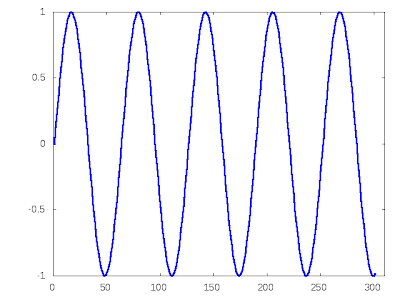 (blogger.com wouldn't actually let me upload an .svg, so I had to render it to a .png first, but you get the idea)
In another terminal window, you can feed the Gnuplot commands to Gnuplot, to recreate this image:
> gnuplot drawing.gp
If you don't want to create an image file, but instead want to view the image in a window, do this instead:
octave> drawnow("x11", "/dev/null", false, "drawing.gp")
Then launch Gnuplot, and enter this command:
gnuplot> load 'drawing.gp'
Whala!
First, launch Octave, and then enter the following command:
octave> plot(sin(0:0.1:30),'LineWidth',3)
You can now regenerate this plot, but direct the plotting commands to a file:
octave> drawnow("svg", "drawing.svg", false, "drawing.gp")
In this case, we've chosen the SVG "terminal", so that a scalable-vector-graphics image is created in the current directory. The Gnuplot commands used to create this image can be found in the drawing.gp file.
Here's the drawing.svg image:
 (blogger.com wouldn't actually let me upload an .svg, so I had to render it to a .png first, but you get the idea)
In another terminal window, you can feed the Gnuplot commands to Gnuplot, to recreate this image:
> gnuplot drawing.gp
If you don't want to create an image file, but instead want to view the image in a window, do this instead:
octave> drawnow("x11", "/dev/null", false, "drawing.gp")
Then launch Gnuplot, and enter this command:
gnuplot> load 'drawing.gp'
Whala!
Sunday, December 20, 2009
Ubuntu - "Open With"
Ever wonder how to easily specify which program ought to (by default) open a given file type? Wonder no more: Right click on a file of the type in question, then click "Properties" and select the "Open With" tab. There you will be able to either select a program by clicking on its check-box, or add a new program.
Happy Ubuntuing!
Happy Ubuntuing!
Thursday, December 10, 2009
Ubuntu Templates
Ever wonder why, when you right click on your desktop or in a folder, and select "Create Document", it tells you there are "No templates installed"?
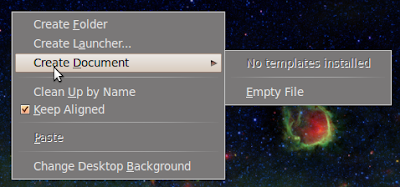
Ubuntu expects you to have a ~/Templates folder (which should have been created when you installed Ubuntu). You may have deleted this at some point, and even if you hadn't, it probably didn't have anything in it. If you'd like to have some handy file templates, just create a ~/Templates folder. Then put some files in it. Whala! They should be available next time you use this right-click menu.
If you try it, and they don't show up, you'll need to edit this file:
~/.config/user-dirs.dirs
And make sure the following line exists:
XDG_TEMPLATES_DIR="$HOME/Templates"
It turns out that Ubuntu is smart enough to automatically edit this file for you, should you move (and maybe even rename) this folder. However, if you delete it, Ubuntu will set this line to use your home folder as the default location.
While you are editing this file, you might want to take a look at some of the other lines; you may find them useful.
Happy Ubuntuing!

Ubuntu expects you to have a ~/Templates folder (which should have been created when you installed Ubuntu). You may have deleted this at some point, and even if you hadn't, it probably didn't have anything in it. If you'd like to have some handy file templates, just create a ~/Templates folder. Then put some files in it. Whala! They should be available next time you use this right-click menu.
If you try it, and they don't show up, you'll need to edit this file:
~/.config/user-dirs.dirs
And make sure the following line exists:
XDG_TEMPLATES_DIR="$HOME/Templates"
It turns out that Ubuntu is smart enough to automatically edit this file for you, should you move (and maybe even rename) this folder. However, if you delete it, Ubuntu will set this line to use your home folder as the default location.
While you are editing this file, you might want to take a look at some of the other lines; you may find them useful.
Happy Ubuntuing!
Sunday, June 21, 2009
Google Earth 5.0 in Ubuntu 9.04 64-bit
There's a bit of a gochya when installing Google Earth in Ubuntu 9.04, 64-bit. If you read my previous blog post on this topic, that'll get you part way to installing it. However, it won't run properly, and will give you the following error message:
"google earth detected an error while trying to authenticate"
There is a missing dependancy, so all you have to do to get it to run is to do this:
> sudo apt-get install lib32nss-mdns
Happy Google Earth Surfing.
"google earth detected an error while trying to authenticate"
There is a missing dependancy, so all you have to do to get it to run is to do this:
> sudo apt-get install lib32nss-mdns
Happy Google Earth Surfing.
Saturday, June 6, 2009
Denver People's Fair - Land of Woo
The "woo" was out in force at the 2009 Denver (Capitol Hill) People's Fair this year.
COCORE - Colorado Coalition of Reason.
The only "anti-woo" we found at the fair.

Acupuncture. Its old, and the Chinese have used it. Therefore, its legit. QED

Allergies cured by "laser technology". I wonder if they remove them from the heads of the ill-tempered sea bass prior to use.

What ever it is, it cures everything.

Tarot. At least they make it clear its "magical thinking".

Tarot, and palm reading.

Oh good, finally, The Truth.

I'm glad there wasn't a monopoly on advanced palm-reading technology. Its good that consumers have a choice in how to get scammed.

Apparently, the chiropractors have been doing it wrong.

Chi-Chi Rodriguez would be proud.... or would file a law suit for patent infringement on his novel "magic bracelet" err "magnetic bracelet" technology.
(kind of hard to see)

Advanced Photoshop lessons.

Your spine is bent.

Magic cream cures all pain.

They'll read your brain, and your palm, at the same time. Its like a lube-job and a tire rotation, at the same garage. How convenient!

Got Energy?

Your spine is crooked.

Oh good, no one has a monopoly on magnetic technology, either.
 God is now here. Uhuh. Be careful. These guys want you to think they are atheists. This seems like a clever trick, at first, until you talk to them, and realize they're idiots.
Looks like woo.

Smells like woo.

Must be woo. But its only $1, what's the harm?

Yay, Scientologists! In Denver! We're so honored!

Nope. And we're looking so hard.

Wait, these guys say they have the truth, but the other booth said they have the truth. Which truth is The Truth?

Saturday, April 25, 2009
Seed Starting
Its that time of year! Check out my simple, cheap and convenient method of seed starting:


And the final product:

Subscribe to:
Posts (Atom)